|
<< Click to Display Table of Contents >> CommandLine Utility |
  
|
|
<< Click to Display Table of Contents >> CommandLine Utility |
|
With the Developer Edition of Synkronizer 11, it is also possible to compare Excel files via the command line commands. The Excel files can be compared fully automated with a single mouse click - without opening Excel!
synk.exe is a handy program which allows you to compare Excel files without opening Excel. You can enter all variables like file names, folders and comparison options in a single command. The program then generates different reports and log files with all differences. While executing, the program will start a hidden instance of Excel. After the comparison process the Excel instance will be closed again.
The following tasks are supported:
| • | Compare two files |
| • | Compare a source file against a bundle of source files |
| • | Compare all Excel files (with equal file names) in two folders |
| • | Create a difference report |
| • | Create a log file which contains all differences |
| • | Format and filter options are supported |
The following tasks are not supported:
| • | Source and target files cannot be saved |
| • | Differences cannot be highlighted |
| • | Differences cannot be outlined (shown/hidden) |
| 1. | Start the Windows Explorer |
| 2. | Select the Synkronizer folder c:\Program Files\Synkronizer\Synkronizer 11\ |
| 3. | Double-click on synk.exe |
| 4. | The Sykronizer CommandLine Utility appears. |
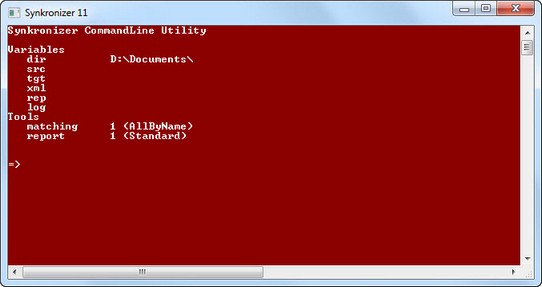
We recommend that you create a batch file or a Windows shortcut. In this way you can start the CommandLine Utility with a single mouse click.
Creating a batch file
Proceed as follows:
| 1. | Start a text editor and create a new document. |
| 2. | Write the following code: @echo off "C:\Program Files\Synkronizer\Synkronizer 11\Synk.exe" |
| 3. | Save the file as synk.bat in a folder of preference |
Creating a Windows shortcut
You can also create a Windows shortcut. Proceed as follows:
| 1. | Right-click an open area on the desktop, point to New, and then click Shortcut. |
| 2. | Click Browse. |
| 3. | Locate synk.exe which is stored in the following folder: C:\Program Files\Synkronizer\Synkronizer 11\ click Open, and then click Next. |
| 4. | Type a name for the shortcut and click Finish button. |
| 5. | Right-click on the created shortcut. |
| 6. | Enter in the field "Start in" the folder, in which the Synkronizer files should be stored. |
| 7. | Click OK and close the shortcut |